

Gallery and Folders
More options
 Discuss with Marie
Renaming and Moving
Change the name of a folder or photo and move it to another folder.
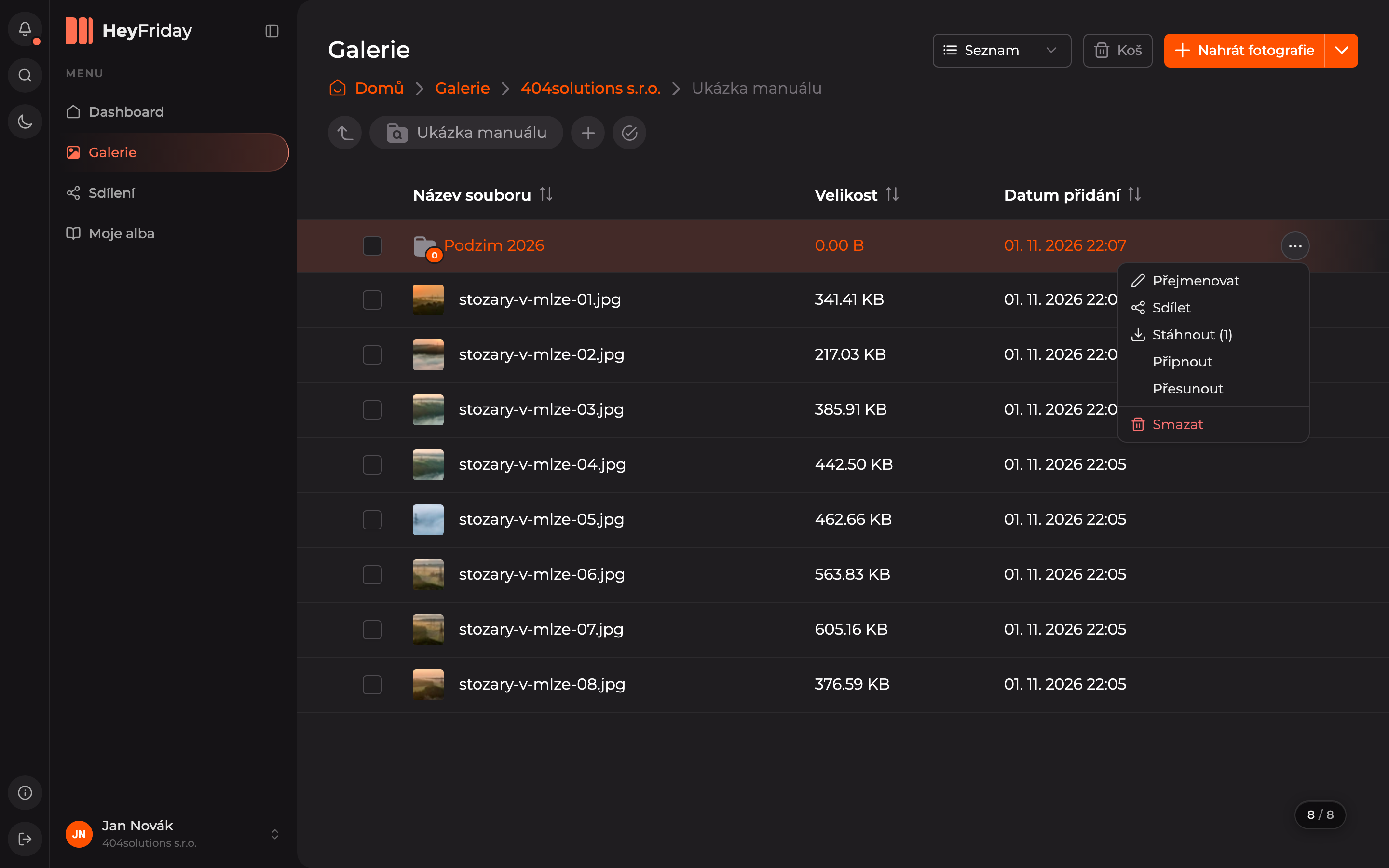
Each folder and photo has its own action menu. Open it with the three-dot button that appears at the end of the row when you hover over it with the mouse.
Renaming
Open the action menu
Hover over the folder or photo row, click the three dots, and select Rename.
Enter the new name
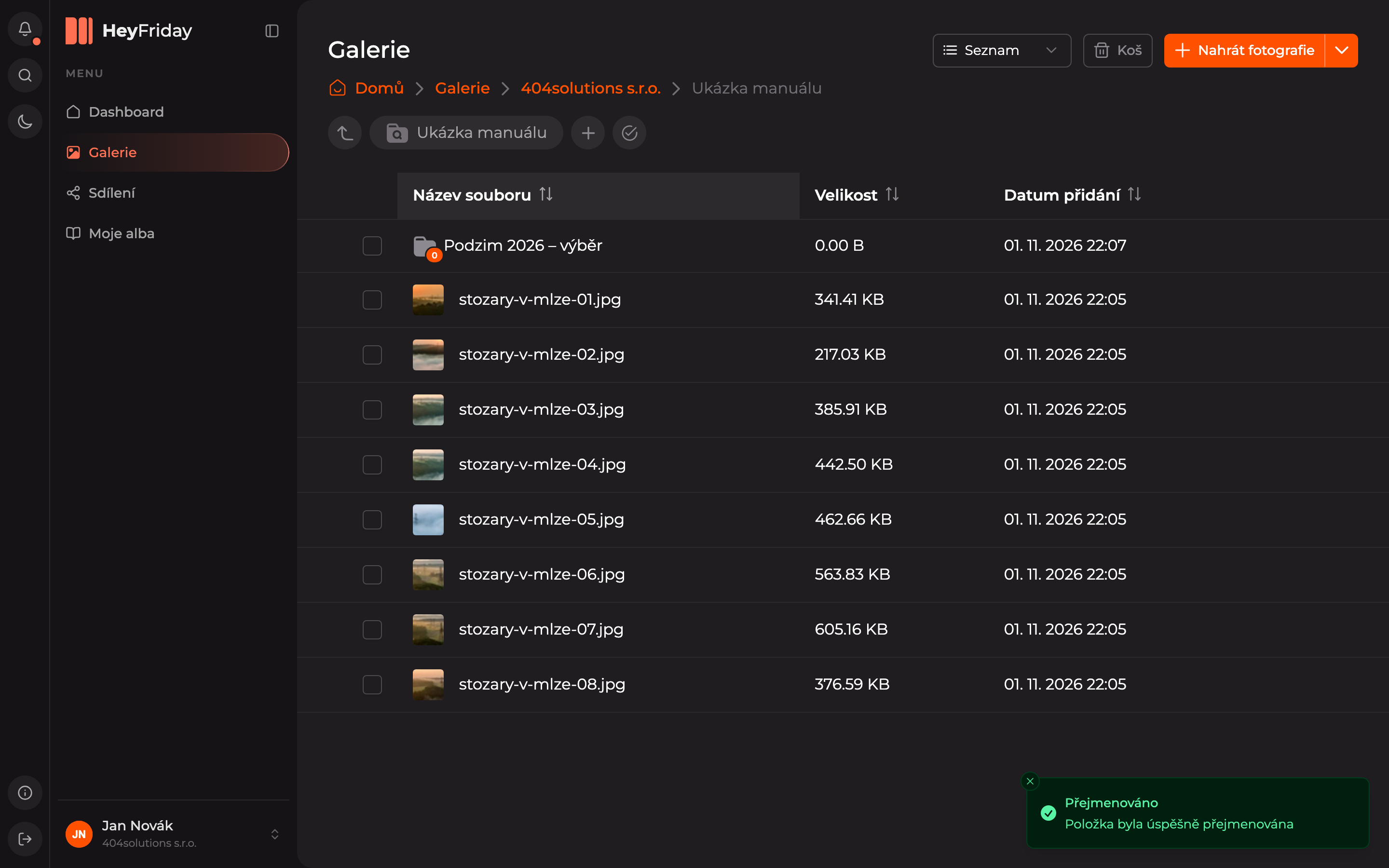
In the dialog, overwrite the name and confirm it by clicking Rename.

The item has a new name and a confirmation Renamed briefly appears at the bottom right.
Moving to another folder
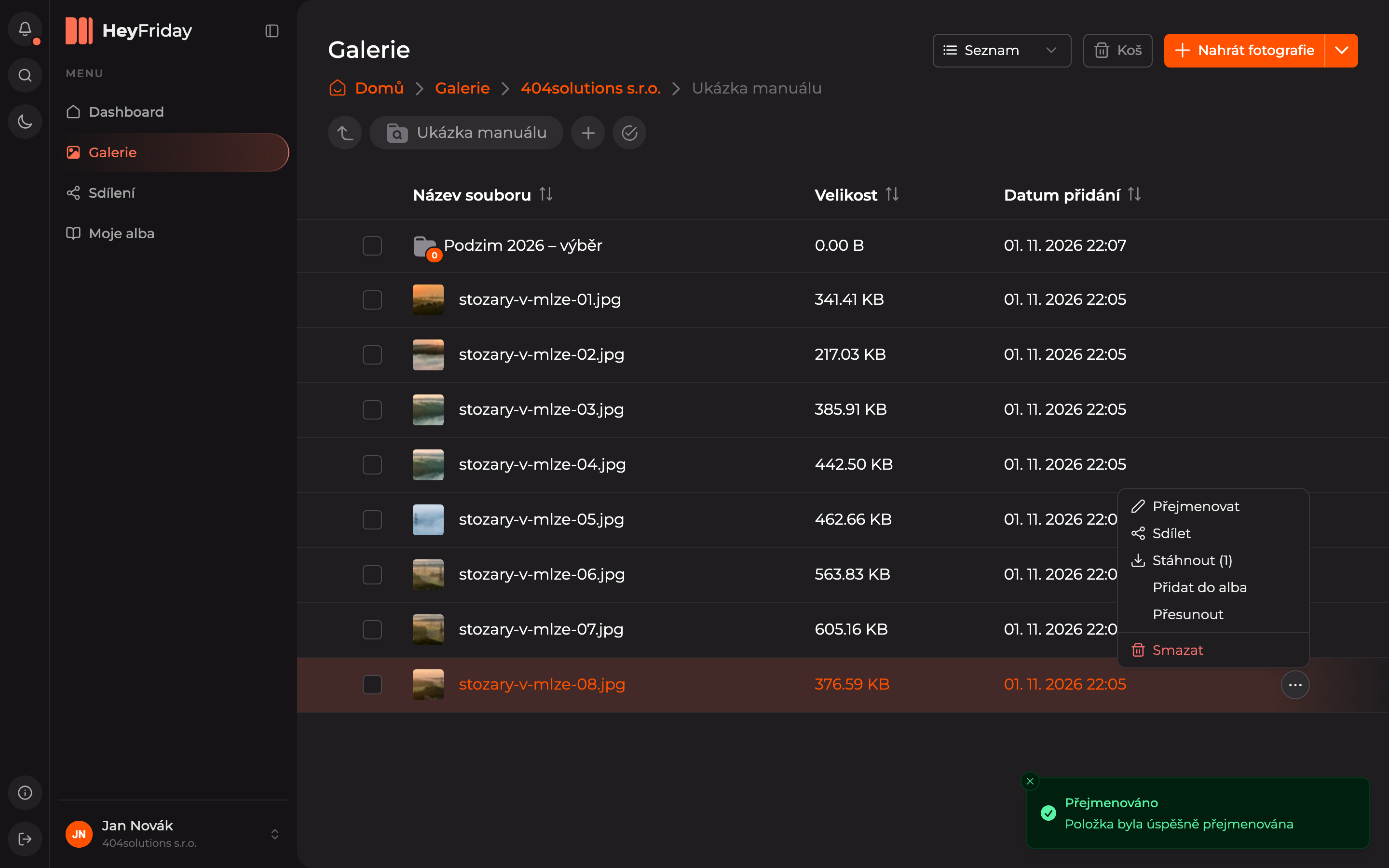
Choose Move
In the item’s action menu, click Move.
Select the target folder
In the Move dialog, select the folder where the item should go. Click the arrow before the name to expand subfolders. Then click Move.

You can move multiple items at once using the multi-item selection.
Updated