

Searching
More options
 Discuss with Marie
Photo Search
Search for photos, folders, and users, and narrow down results with filters.
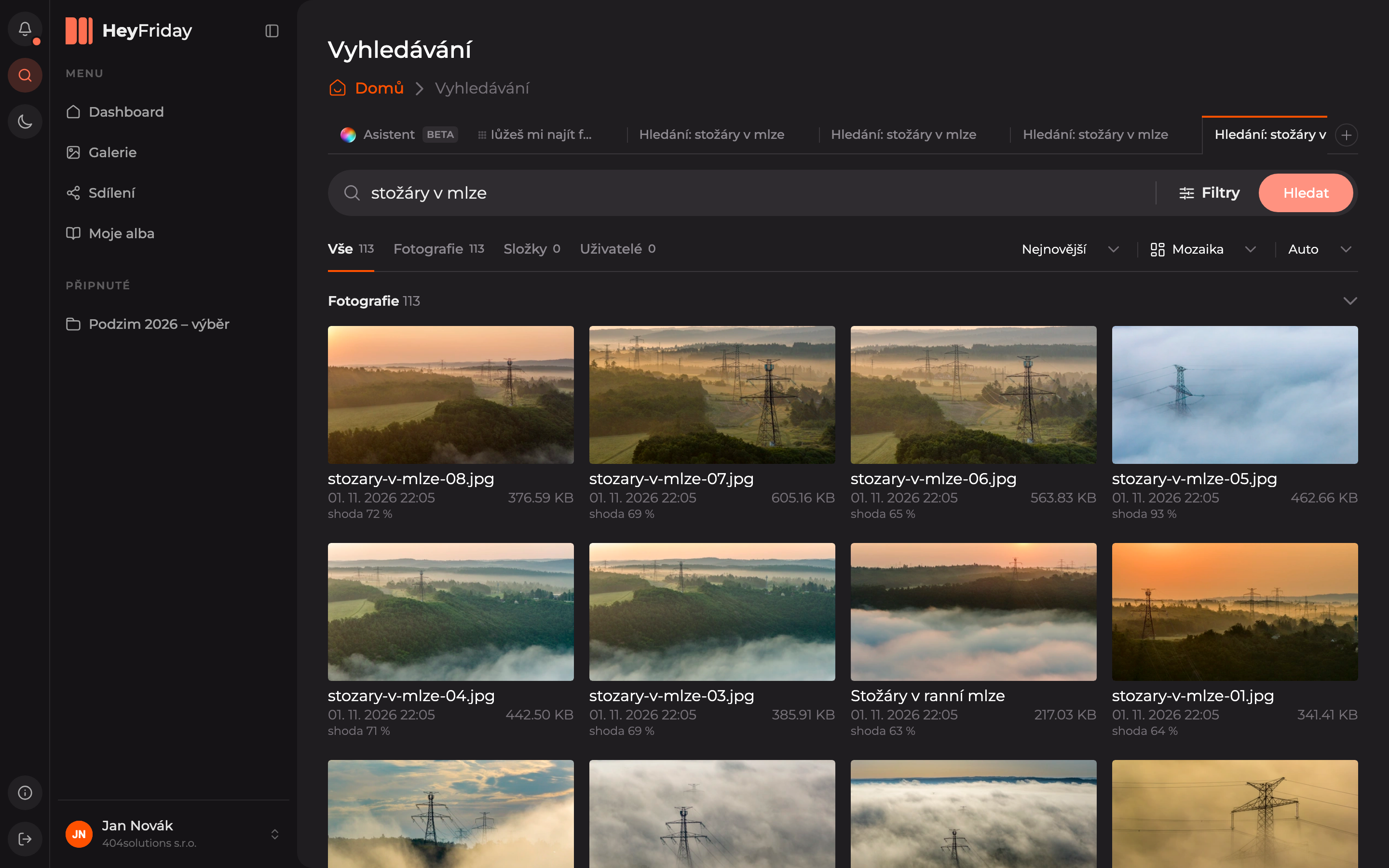
Type what you’re looking for in the search bar, even a full sentence — for example, masts in the fog. HeyFriday will find photos matching the title, description, and content.
Open Search
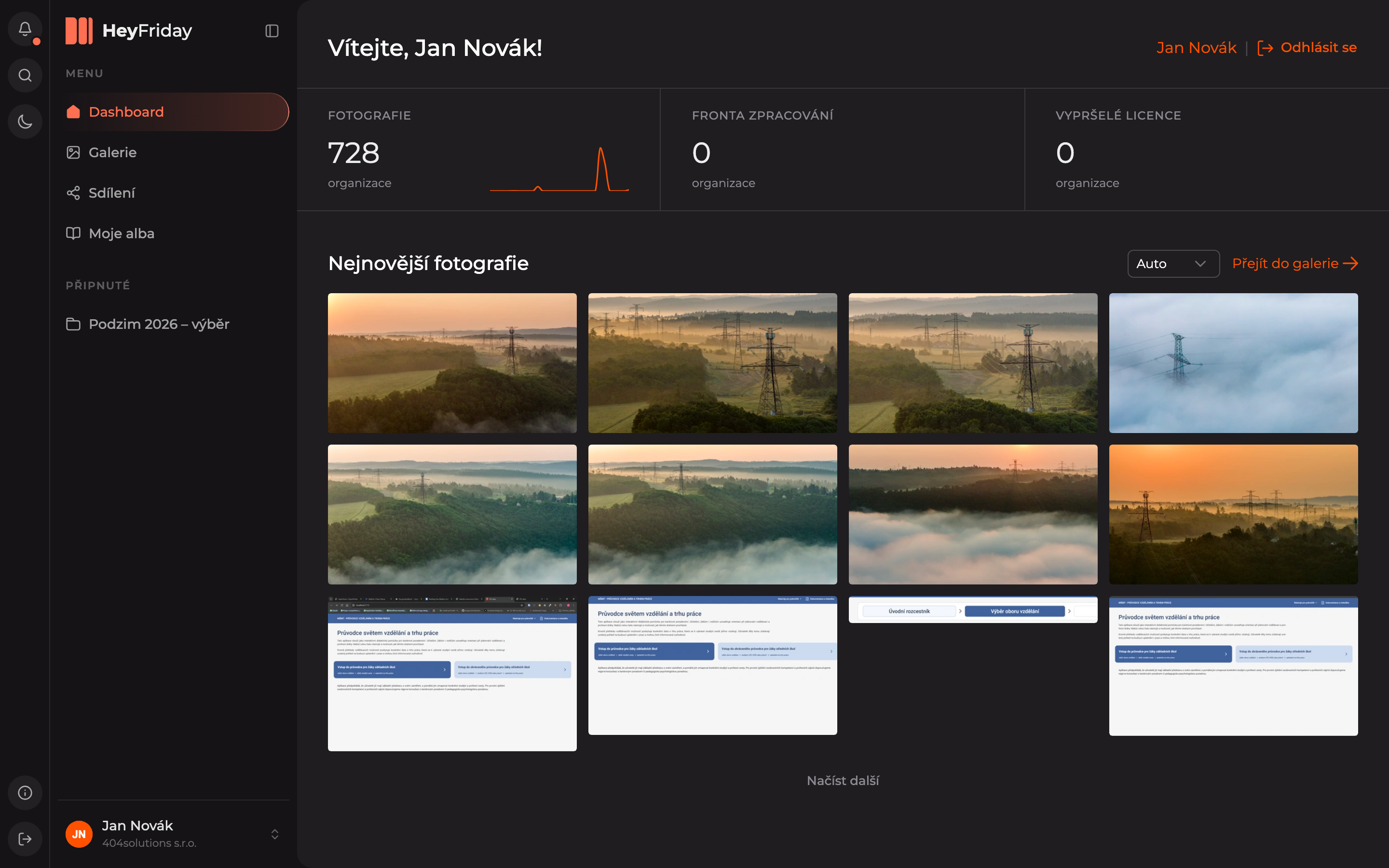
Click the magnifying glass icon Search on the left edge toolbar.
Enter your search
Type your search text into the field and click Search.
Browse the results
Results are divided into tabs All, Photos, Folders, and Users; the number on each tab shows the count of results. Each photo shows a match percentage — the higher, the better the photo matches your search. Above the results on the right, you can change sorting (e.g., Newest) and view mode (e.g., Mosaic).
Click a photo to open its detail.
Filters
Click the Filters button next to the search field to open a panel where you can narrow down results:
- Where to search — Folder (default All folders), Include subfolders, and Trash: Outside trash, Only trash, or All.
- When — Uploaded from and Uploaded to.
- What’s in the photos — Tags and People in the photo.
- License — Validity, Carrier, and Location, see Photo License.
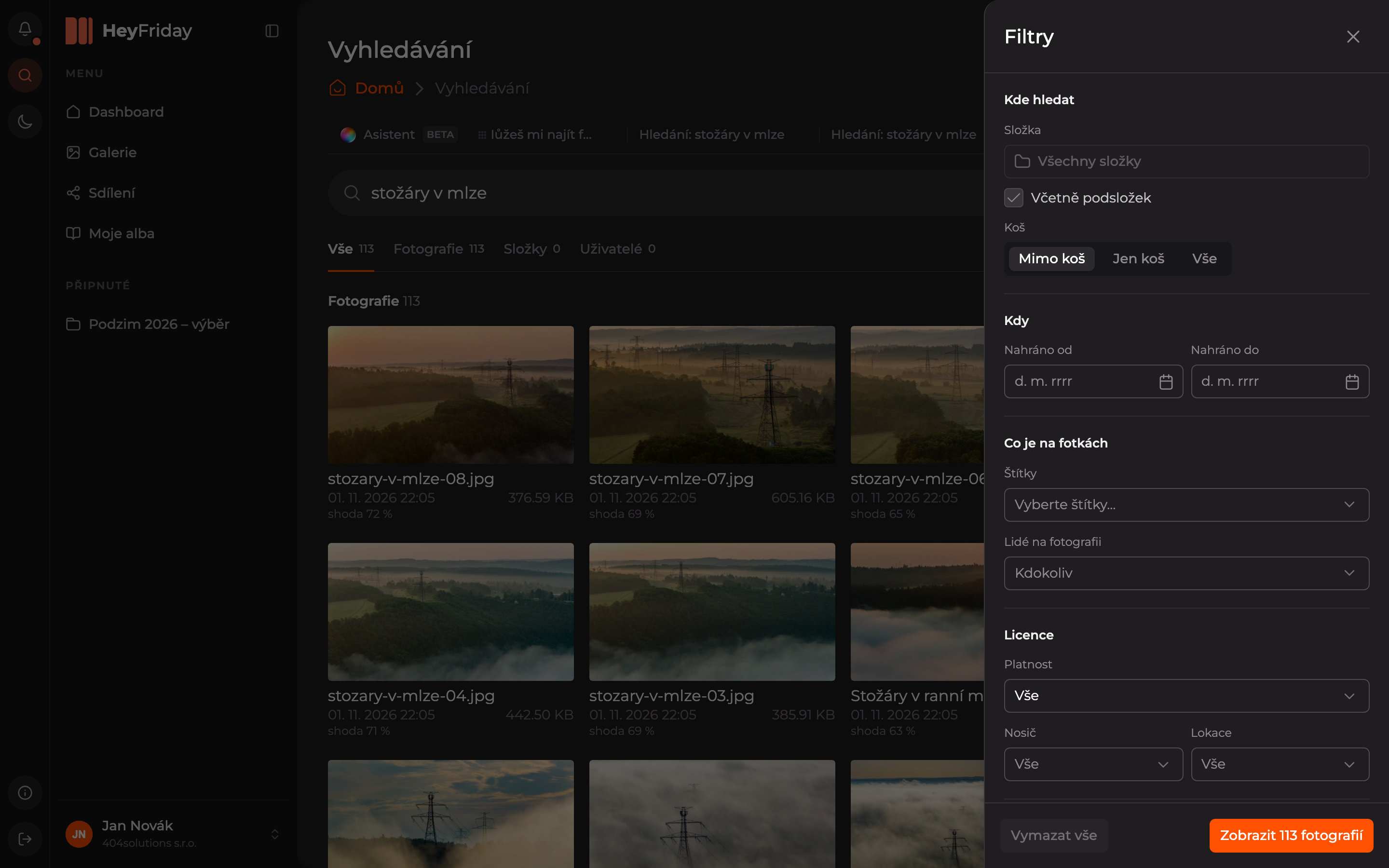
The button at the bottom shows how many photos match the filters (e.g., Show 113 photos); click it to display them. Clear all resets the filters.
Search Tabs
Each search opens as its own tab at the top (e.g., Search: masts in the fog). You can switch between searches without losing your place. Add a new tab with the + button at the end of the row.
Updated