

Uploading Photos
More options
 Discuss with Marie
Import with Duplicate Check
Upload an entire folder, ZIP, or a folder from Google Drive and skip photos that are already in the gallery.
The import scans all subfolders and compares photos with the gallery. Before anything is uploaded, you will see where the folders will be placed and which photos are already in the gallery. Useful for large archives where you don’t want duplicate photos.
Open the import
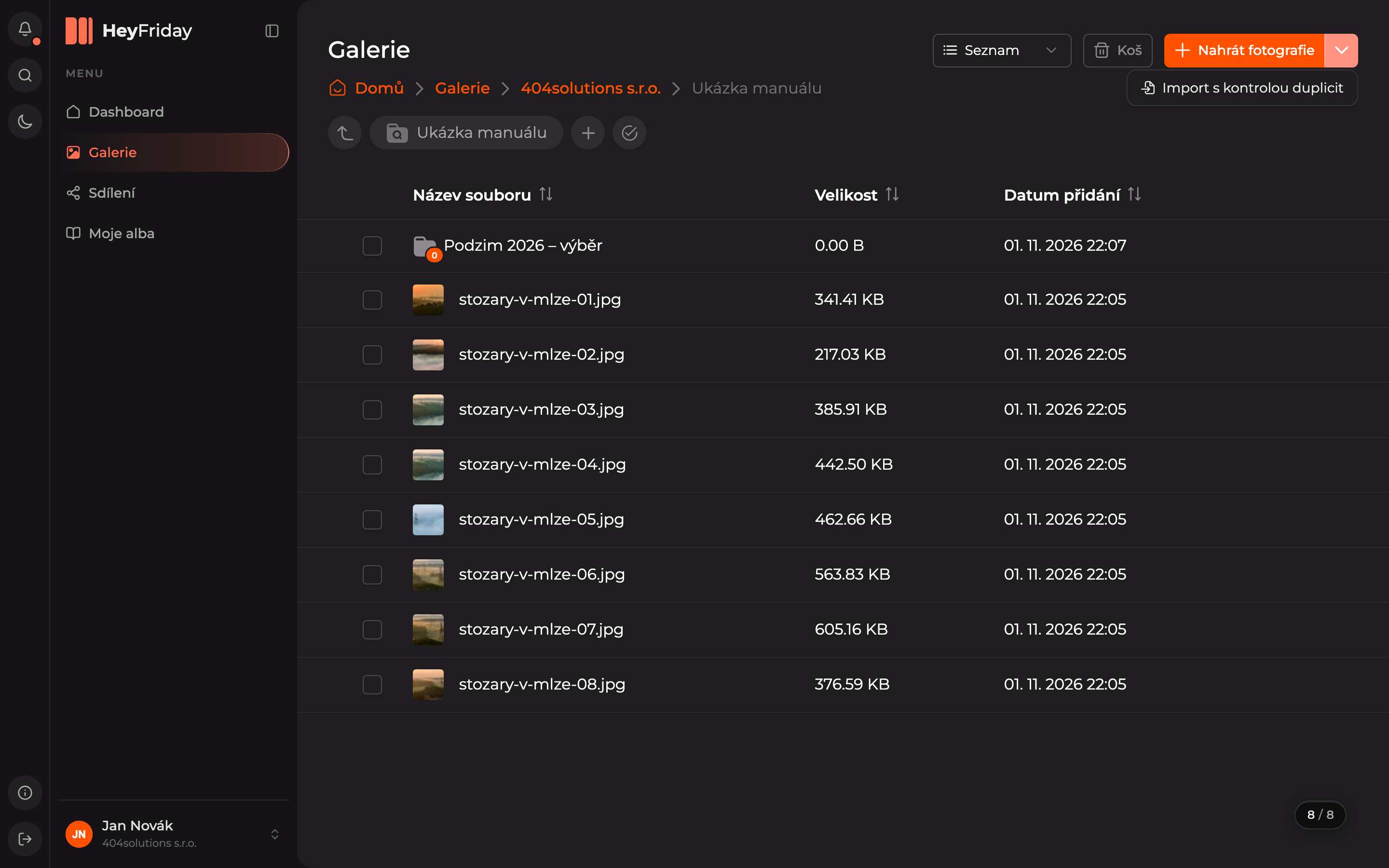
Click the arrow next to Upload photos in the top right and select Import with duplicate check.
Select the source
Drag a folder or ZIP into the window, or choose the source with the button:
- Select folder — a folder from your computer, including subfolders.
- Select ZIP — a ZIP archive.
- Google Drive — a folder shared from Google Drive (see below).
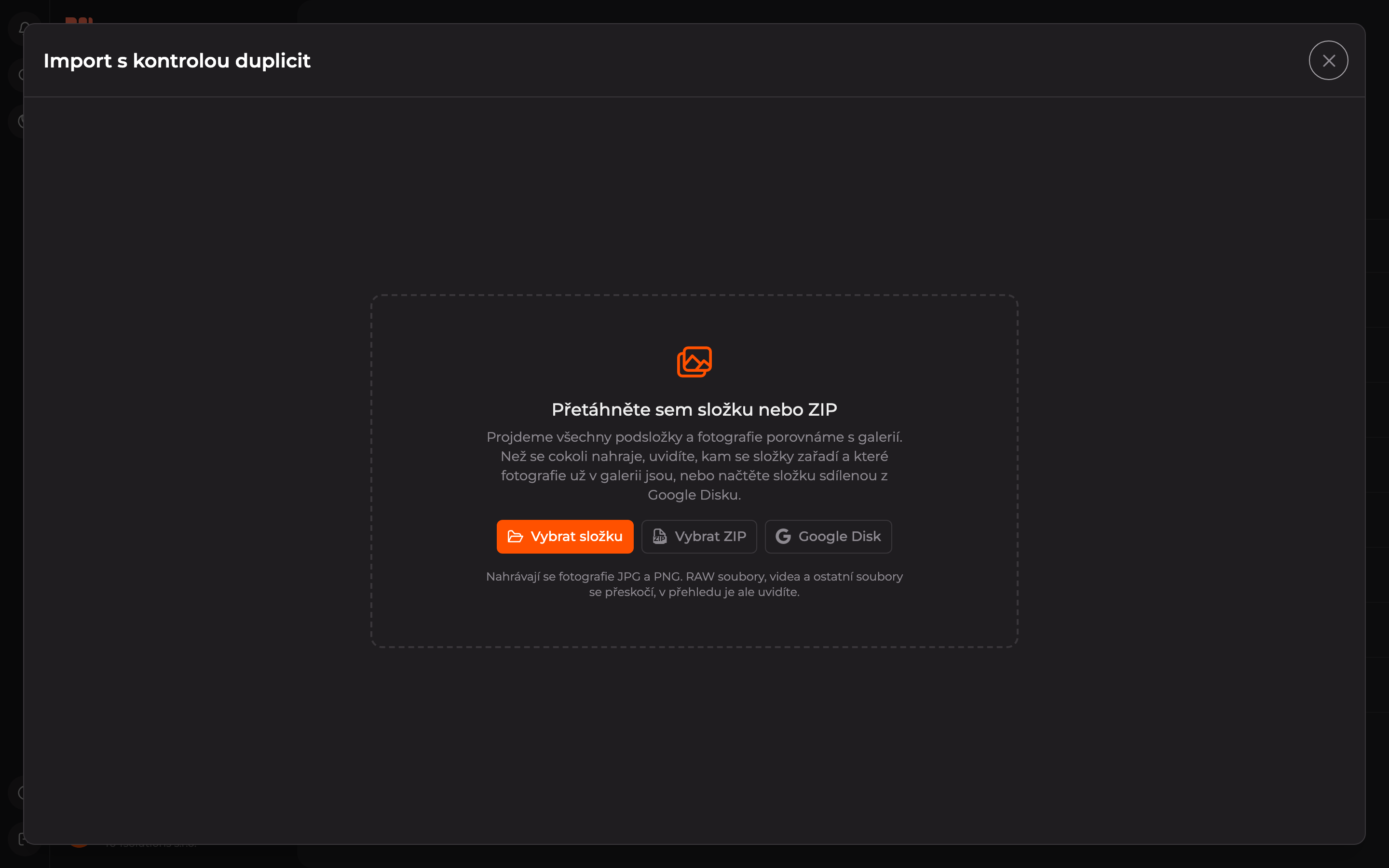
JPG and PNG photos are uploaded. RAW files, videos, and other files are skipped but will be visible in the overview.
Check structure and duplicates
HeyFriday scans the source and shows the Structure and duplicates step:
- Summary — how many photos the source contains, how many are already in the gallery (duplicates), and what will be skipped, such as RAW files.
- Where photos will be uploaded — folders from the source are on the left, their place in the gallery on the right. You can change the target folder by selecting above the list. A folder with the same name merges with an existing one; others are created and labeled new. You can see the number of duplicates and photos to upload for each folder.
- When everything looks correct, click Continue to selection.
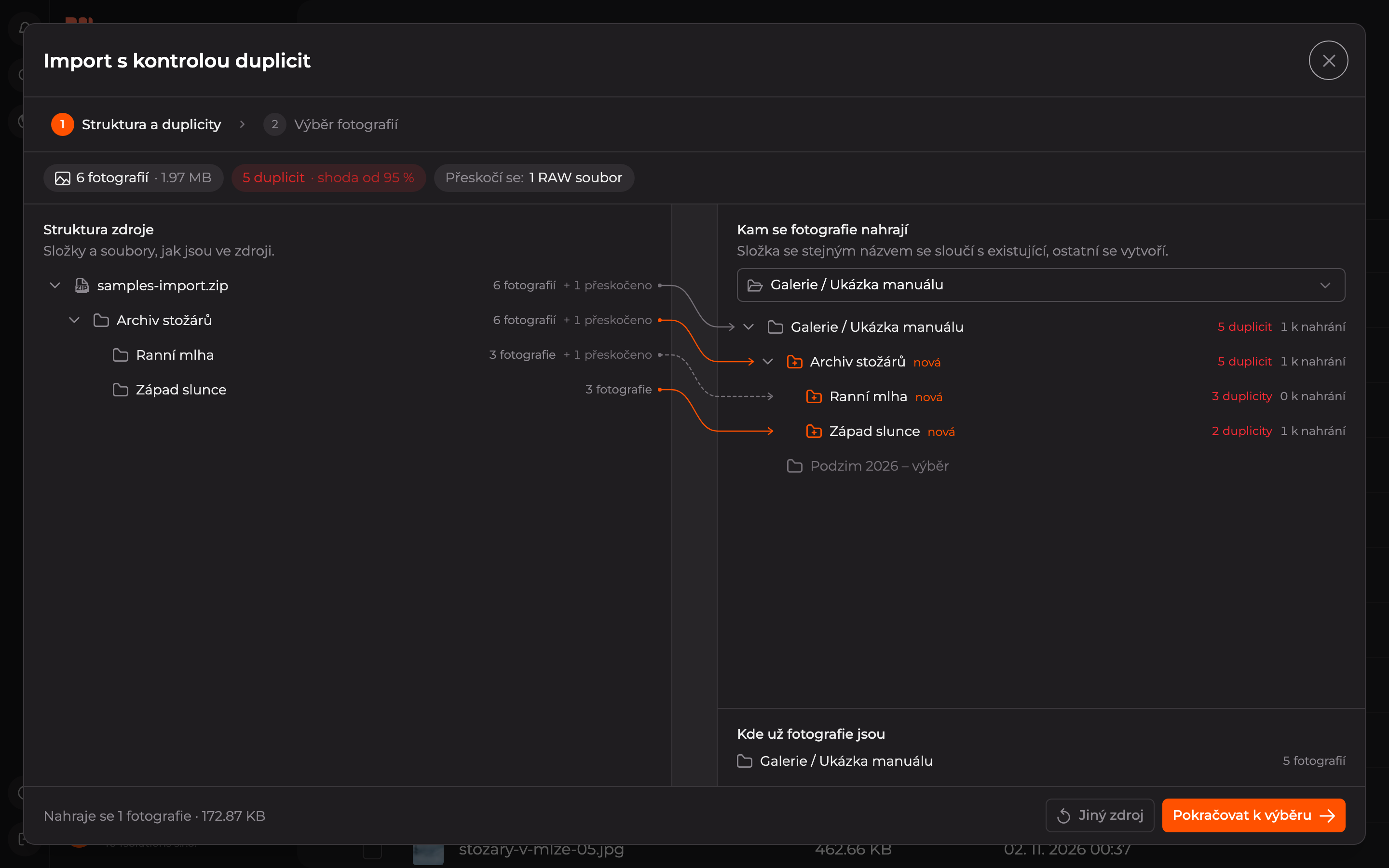
Below the list is an overview Where photos already are: which gallery folders contain found duplicates. Use the Different source button to return to source selection.
Select photos and set import
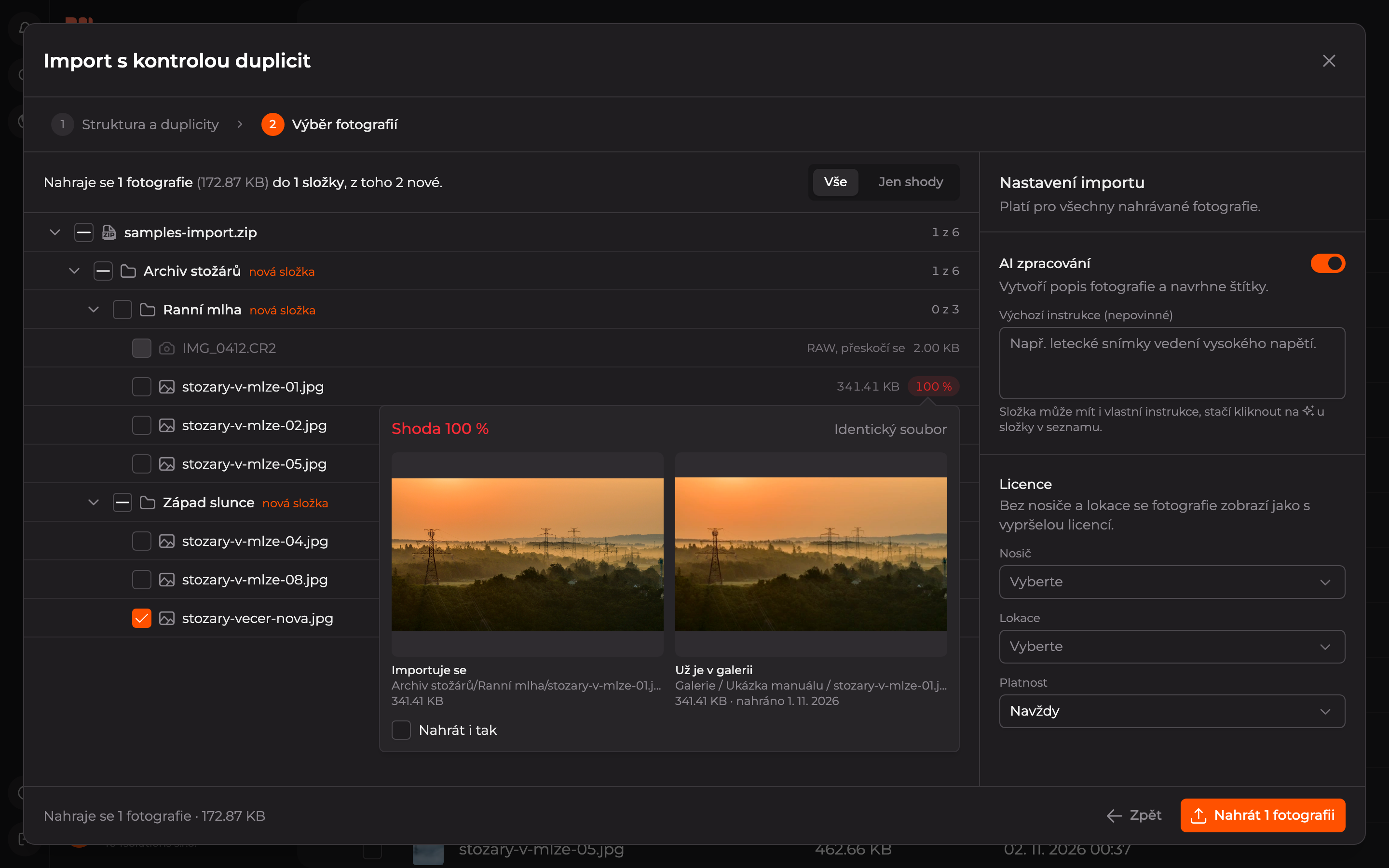
In the Photo selection step, only new photos are pre-checked; duplicates are not checked.
- Use the All / Matches only toggle to show either the entire source or only photos already in the gallery.
- Duplicates show a match percentage. Photos not yet in the gallery are labeled new. Adjust selection by checking photos or entire folders.
- On the right, in Import settings, enable or disable AI processing (description and tags), optionally write instructions for AI, and fill in the License — carrier, location, and validity. Without carrier and location, photos will appear as having an expired license.
- Start the import with the Upload button showing the number of selected photos.
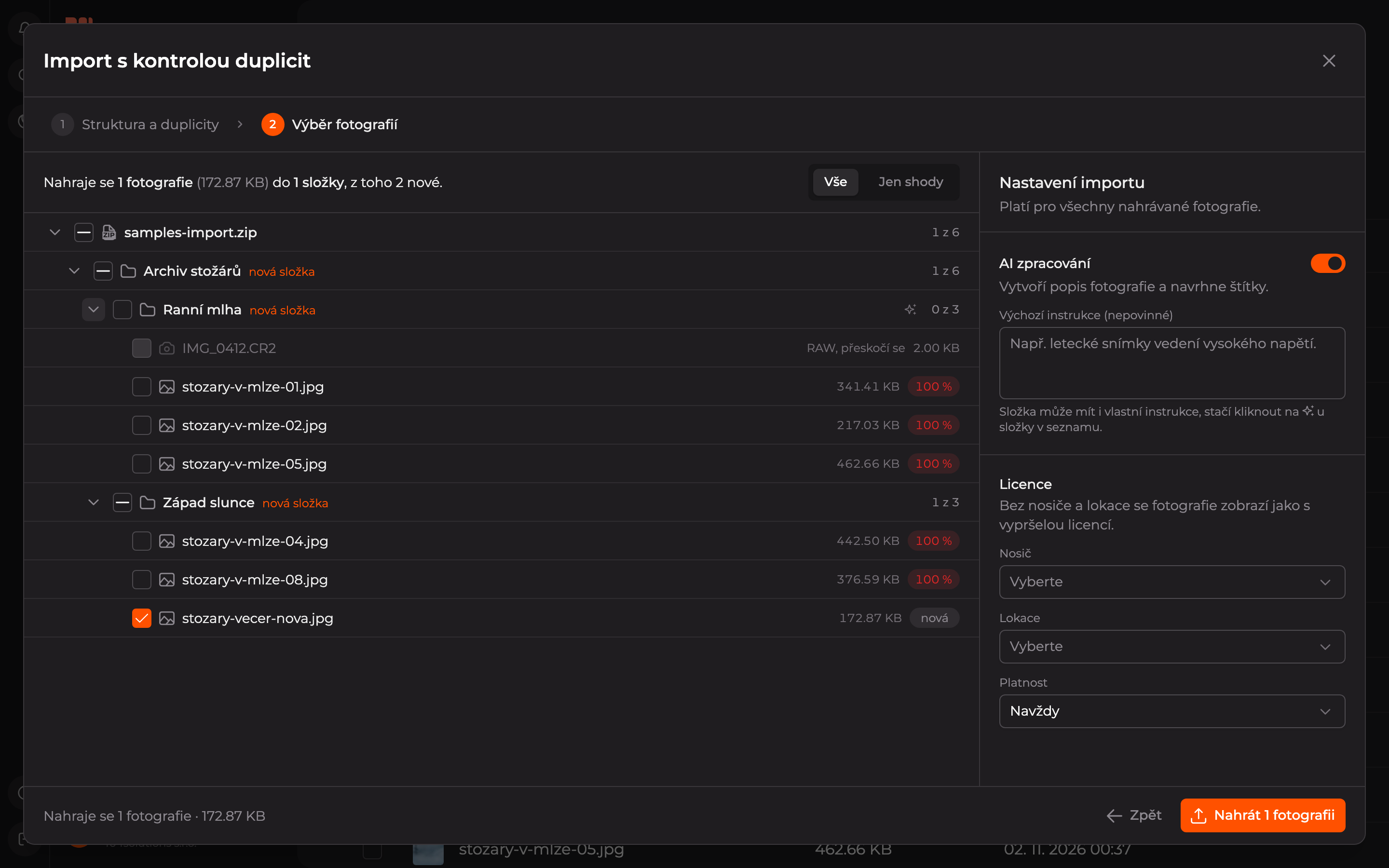
Individual folders can also have custom AI instructions — click the spark icon next to the folder in the list.
Compare match
Not sure if it’s really the same photo? Click the match percentage. You’ll see the imported photo next to the one already in the gallery, including path and size. If you want to upload it again, check Upload anyway.
Wait for upload
After clicking Upload, photos are uploaded to the gallery. You can interrupt uploading with the Stop button. When finished, close the window with Close. Uploaded photos will then be processed by AI, see Processing queue.
Import from Google Drive
HeyFriday reads the folder from Google Drive itself; you don’t need to download anything. Just share it with the special HeyFriday address.
Copy the sharing address
In the import dialog, click Google Drive. In the Service account email field is the address to share the folder with. Copy it using the Copy button.
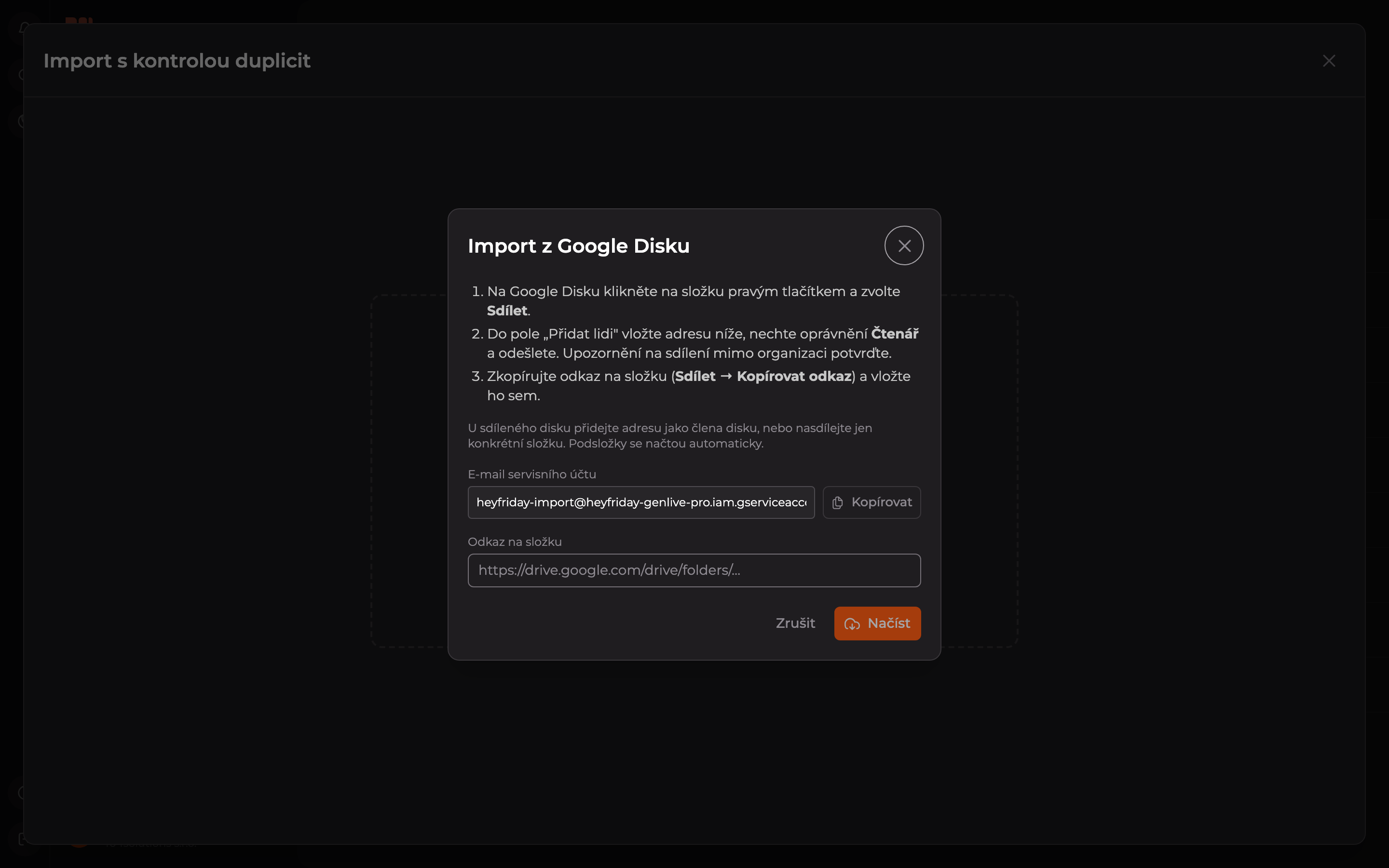
Paste the folder link
On Google Drive, copy the folder link (Share › Copy link), paste it into the Folder link field, and click Load.
Updated