

Getting Started
More options
 Discuss with Marie
Orientation in the Application
Where to find the main menu, search, notifications, and what the dashboard shows.
After logging in, you are greeted by the dashboard with summary numbers and the latest photos. From here, you can go anywhere.
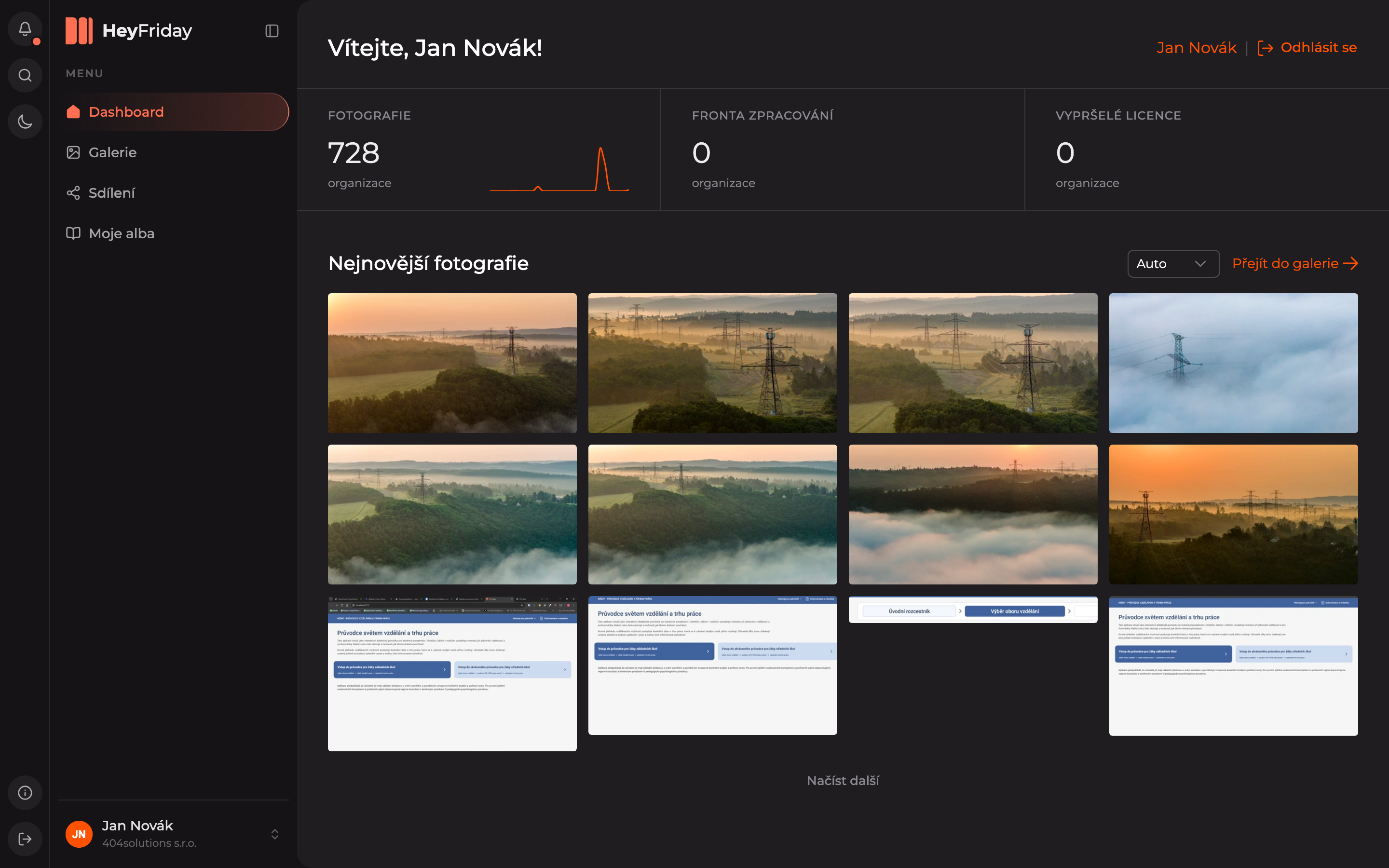
Main Menu
The main menu is in the left sidebar:
- Dashboard — the home overview.
- Gallery — all folders and photos of your organization, see Browsing the Gallery.
- Sharing — what you have shared and what others have shared with you, see Sharing.
- My Albums — your own photo selections, see Albums.
Below the menu, in the Pinned section, folders you have pinned appear.
Icon Bar
At the very left edge is a narrow bar with icons:
- Notifications — alerts, for example about failed photo processing.
- Search — search for photos, folders, and users.
- Theme Switch — toggle between light and dark mode.
- What’s New — app news (at the bottom).
- Log Out (at the very bottom).
Notifications and news are described on the Notifications and News page.
Dashboard
At the top are three summary numbers. You can click on each of them.
- Photos — how many photos your organization has, with a growth chart. Clicking opens the gallery.
- Processing Queue — how many photos are still being processed by AI, see Processing Queue.
- Expired Licenses — how many photos have expired licenses; clicking opens their overview, see Photo License.
Below the numbers are the Latest Photos. Clicking a photo opens its detail, the Go to Gallery link opens the entire gallery, and the Load More button shows older photos.
Collapsing the Menu
Need more space for photos? Use the button next to the HeyFriday logo to collapse the sidebar. Use the same button to expand it again.
Updated